Response Headers · 3 min read
How to Modify Response Headers
Modify HTTP response headers in Chrome, Edge, or Firefox with the Header Override extension. Try a Cache-Control example and verify the result.
To modify response headers in Chrome, Edge, or Firefox, add a response rule in the Header Override extension. The browser receives your chosen header value when the request matches the rule’s URL filter.
Modify a response header in five steps
- Install the Header Override extension for your browser, allow access to the website you want to test, and open the extension. Get the extension.
- Open Headers and click + beside Response to add a response header rule.
- Enter Cache-Control in Header and no-store in Value. Keep the operation set to = (Set) to replace the header value.
- Click the rule's URL filter button, choose Custom URL, and enter |https://example.com/*. Replace example.com with your test domain; * matches all paths on that domain. Then click Done.
- Make sure the rule and extension are enabled, then reload the website with a fresh network request. Header and value edits save automatically.
Cache-Control: no-storeThis tells the browser not to store the matching response. It does not clear an existing cache or change your server or CDN configuration. See MDN’s Cache-Control reference.
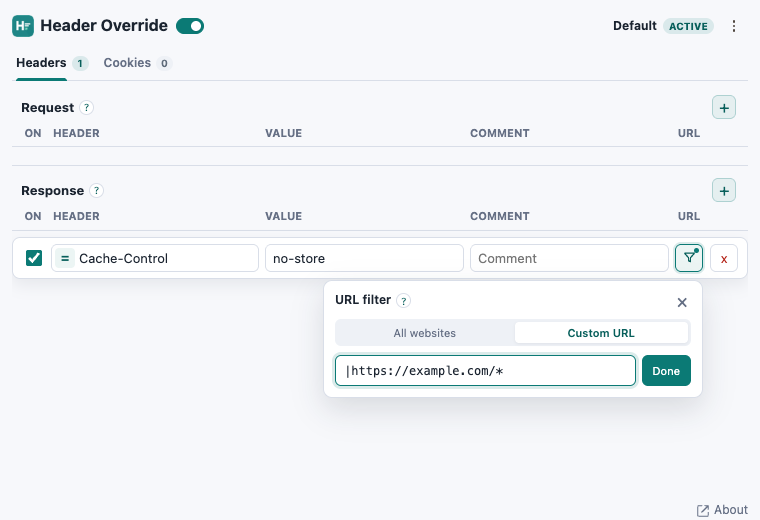
Check the modified response header
Open developer tools → Network and select a matching request. The response headers shown there may not include changes made by an extension. To check the value available to your page, run this in the Console on your test website:
fetch(location.href, { cache: "no-store" })
  .then(response => console.log(response.headers.get("cache-control")));
It should print no-store. If it does not, check the active profile, site permissions, and URL filter, including https and any www subdomain. A response served from a cache or service worker can bypass a fresh network response.
Restore the server’s response headers
Switch off or delete the rule and reload with a fresh network request. The browser will receive the server’s original response headers again. Your override only affects your browser.
For a temporary change inside Chrome DevTools, you can also use local response header overrides.
Related guides: How to Modify Request Headers · How to Modify Cookies · How to Debug CORS Preflight Requests.
Try it on your website
Modify response headers with the Header Override extension.
Change a response header for one website, verify the result, and return to the server’s default.