Request Headers · 3 min read
How to Modify Request Headers
Modify HTTP request headers in Chrome, Edge, or Firefox with the Header Override extension. Follow five simple steps, verify the result, and restore defaults.
To modify request headers in Chrome, Edge, or Firefox, add a request rule in the Header Override extension, enter a header name and value, and reload your website. The rule changes the header sent to the server.
Modify a request header in five steps
- Install the Header Override extension for your browser, allow access to the website you want to test, and open the extension. Get the extension.
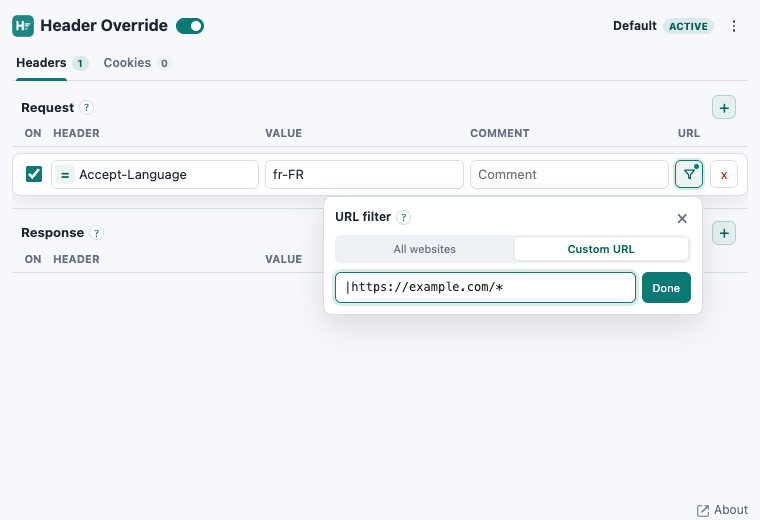
- Open Headers and click + beside Request to add a request header rule.
- Enter Accept-Language in Header and fr-FR in Value. Keep the operation set to = (Set) to replace the header value.
- Click the rule's URL filter button, choose Custom URL, and enter |https://example.com/*. Replace example.com with your test domain; * matches all paths on that domain. Then click Done.
- Make sure the rule and extension are enabled, then reload the website. Header and value edits save automatically.
Accept-Language: fr-FRThis example asks the server for French content. The website decides whether to use the preference; a saved language setting or a language-specific URL may take priority. It does not change your browser’s interface language. See MDN’s Accept-Language reference.
Check the modified request header
Open developer tools → Network and reload the website. Select a matching request and look for Accept-Language under Request Headers. For confirmation, check your server’s request logs or an endpoint that returns the headers it received. The value should be fr-FR.
If the original value is still sent, check site permissions, the active profile, and the URL filter. Match the request’s actual domain, including https and any www subdomain. An API on a different subdomain needs its own matching filter.
Request headers or response headers?
Request headers travel from your browser to the server. Response headers travel back from the server to your browser. Use Request for Accept-Language or User-Agent; use Response for headers such as Cache-Control.
Restore your default request headers
Switch off or delete the rule, then reload the website. The browser will send its normal request headers again.
Related guides: How to Modify Response Headers · How to Change User Agent in Chrome, Edge & Firefox.
Try it on your website
Modify request headers with the Header Override extension.
Set a request header for one website, check what the server receives, and restore the default.