Request Headers · 3 min read
How to Change User Agent in Chrome, Edge & Firefox
Change your User-Agent header with the Header Override extension in Chrome, Edge, or Firefox. Follow five simple steps and verify the result.
To change your user agent in Chrome, Edge, or Firefox, add a User-Agent request header in the Header Override extension, choose a value, and reload the website.
The User-Agent header tells a server which browser or crawler a request claims to come from. Changing it helps you test how your website responds to different user-agent values.
Change your user agent in five steps
- Install the Header Override extension for your browser, allow access to the website you want to test, and open the extension. Get the extension.
- Open Headers and click + beside Request to add a request header rule.
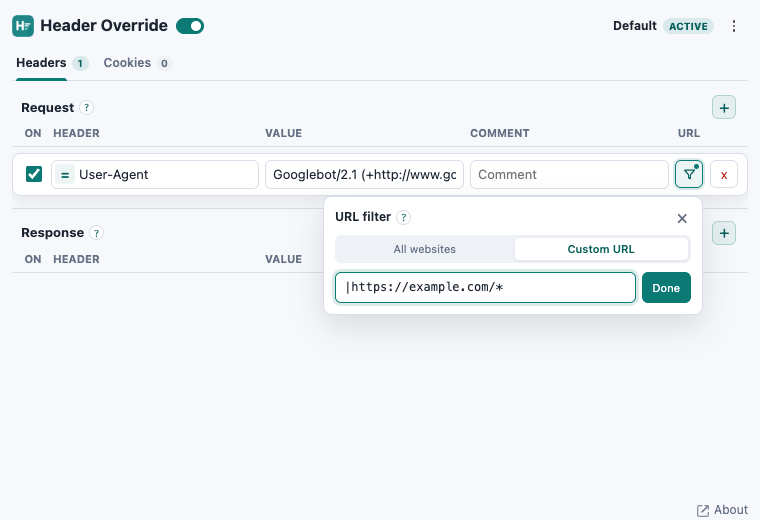
- Enter User-Agent in Header and your chosen string in Value. Keep the operation set to = (Set).
- Click the rule's URL filter button, choose Custom URL, and enter |https://example.com/*. Replace example.com with your test domain; * matches all paths on that domain. Then click Done.
- Make sure the rule and extension are enabled, then reload the website. Header and value edits save automatically.
Try this short Googlebot user-agent string from Google's crawler documentation:
Googlebot/2.1 (+http://www.google.com/bot.html)Use it to check how your website handles requests that identify themselves as Googlebot. Your IP address stays the same, so this does not simulate a verified Googlebot visit.
Check that your user agent changed
Open your browser's developer tools, select Network, and reload the page. Select the page request and look for User-Agent under Request Headers. For confirmation, check your server's request logs or an endpoint that returns the headers it received.
If the original value is still sent, check that the URL filter matches the full request URL, including https and any www subdomain, and that the correct profile is active.
What this changes
This changes the User-Agent header sent to matching websites. It does not turn Chrome into Safari or emulate a phone. JavaScript's navigator.userAgent and other browser signals, including User-Agent Client Hints, remain unchanged by this rule, so a website may still identify your original browser.
Restore your default user agent
Switch off or delete the User-Agent rule, then reload the website. Your browser will send its normal header again.
For several test setups, keep each user-agent rule in a separate profile. Debug with Header Profiles.
Related guides: How to Modify Request Headers.
Try it on your website
Change your user agent with Header Override.
Set a custom request header and limit it to the website you want to test.